
Build library, import and export
RotorLab gives you two ways to keep a build. The build library stores named builds against your account, with versions, sharing, and organizing on top. Import profile and Export profile move a complete build as a JSON file you can keep per airframe, email to someone, or check into version control. Both live behind the Build menu on the Builder page.
Your library is private to your account. What teammates share with you appears separately, on the Team builds tab; see Sharing builds with your team.
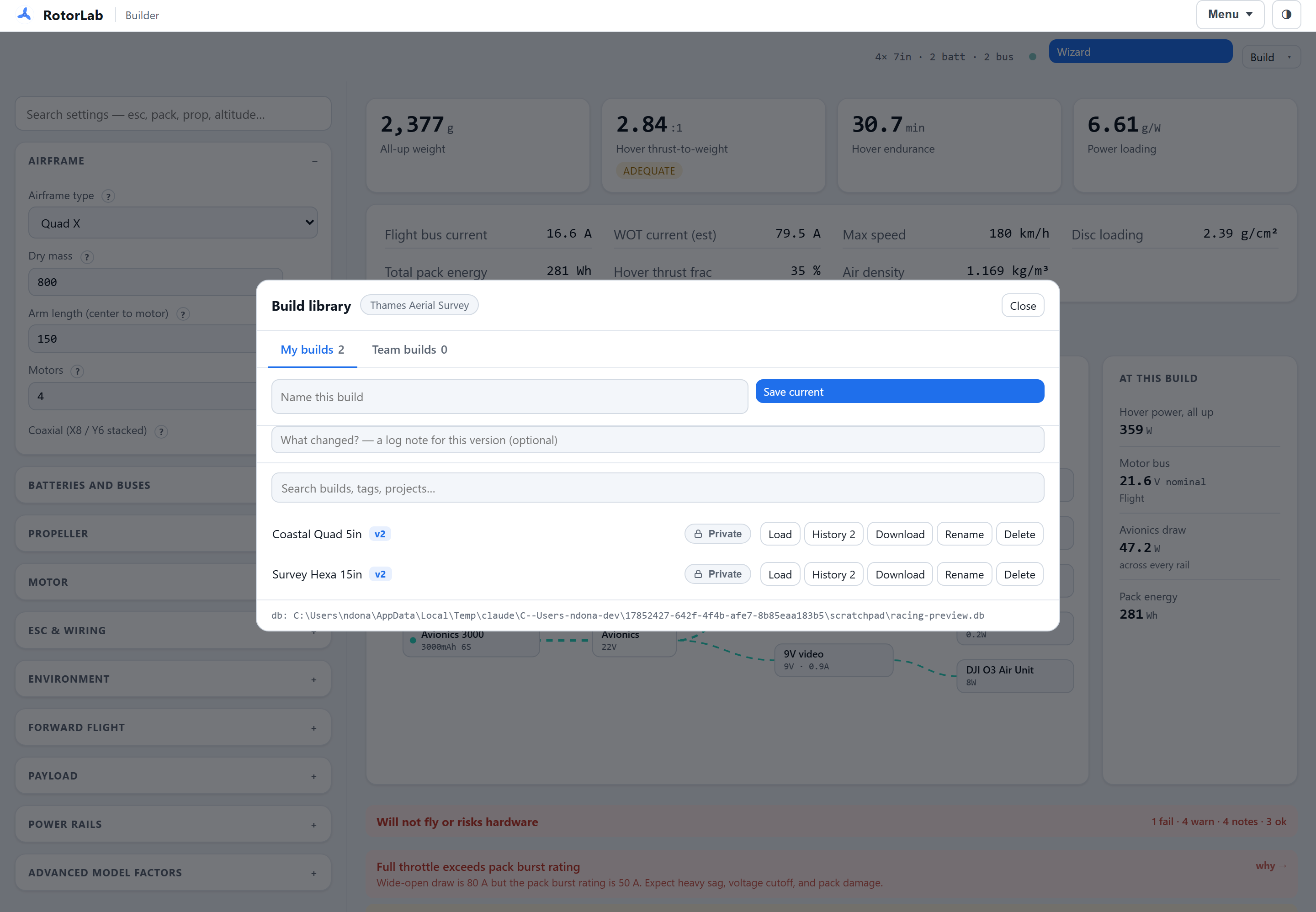
The Build library panel#
On the Builder page, open the Build menu and choose Build library. The panel has two tabs, My builds and Team builds, with a counter on each. My builds shows your saved builds, each row with the build name, a version badge once it has more than one version, its sharing scope pill, any project and tags, and five actions: Load, History, Download, Rename, and Delete.
Above the list sit the save controls and a search box with filter chips. The search box matches build names, tags, projects, and notes; the chips filter by one project or tag at a time. See Build history and organizing for tags, projects, and the History dialog.
Saving a build#
- Open the Build menu, then Build library.
- Type a name into Name this build. If a build is currently loaded, its name is prefilled.
- Optionally fill in the note field below it ("What changed?"): it is kept on this version in the build's history. A note can be up to 1,000 characters; a longer one is refused with a message rather than cut.
- Press Save current. A message confirms the save and the version number it was saved as.
Saving under a name that already exists overwrites that build with the bench's current state (and adds a new version to its history).
If a newer version of that build was saved after you loaded it, for example by applying a result in Live Calibration or from another browser tab, the Builder asks before saving over it. Press Save as the next version to save your bench anyway; the history keeps both versions. When you open the Builder with a saved build on the bench and the library already holds a newer version of it, the Builder offers to load that version (Load v followed by its number), which replaces your bench copy. Saving under a new name creates a new library entry. There is no separate "duplicate" action: to duplicate a build, Load it, then save it under a different name.
Loading a build#
Press Load on a row and the build replaces whatever is on the bench, the analysis reruns, and the panel closes. Loading always resets the bench to defaults first and then overlays the saved values, so every load behaves the same way regardless of where the build came from.
Loading replaces the bench
Loading does not merge into your current work. If the bench holds unsaved changes you want to keep, save them under a name first.
Downloading a saved build#
Press Download on a row to write that saved build's configuration to a JSON file named rotorlab_<name>.json. This reads the saved copy directly, so it does not disturb the build currently loaded on the bench. Use it to export an old build without loading it.
Renaming and deleting#
Rename prompts for a new name for the saved entry. Delete asks for confirmation, then removes the build from the library; if the deleted build was the one loaded on the bench, the bench keeps its values but is no longer linked to a library entry.
Import and Export profile#
Export profile in the Build menu writes the full profile as a JSON file: every input, including all batteries, buses, rails, and their loads. Import profile reads one back and loads it onto the bench.
A profile file is the complete, portable form of a build. Keep one per airframe, attach it to a maintenance record, or commit it to a git repository so changes to a design are diffable.
How loading fills missing inputs#
Whether a build comes from the library or from an imported file, loading resets to defaults and then overlays the saved values. Any input the saved profile does not mention gets the value that reproduces the profile's original behavior, not the current default, so loading a build never silently changes its physics.
The clearest example is forward flight: a profile with no flat-plate drag area loads with Flat-plate drag area f set to 0, which selects the flat cruise factor, rather than taking the default and quietly gaining cruise drag. See Forward flight and VTOL cruise for what f does.