
Your working build
RotorLab carries one working build across the whole app. Whatever you are editing in the Builder is saved continuously in your browser (in localStorage, under the key rotorlab-build), so navigating away and back does not lose unsaved work, and every analysis tool can pick up exactly the build you were just editing. You do not export, re-import, or re-enter anything.
The working build lives in the browser, not on the server. It follows you between tools on the same machine and browser, but it does not sync to another device; save to your library for that.
How the carry works#
As you edit in the Builder, the current state is written to the browser after each change, along with the name of the saved build it came from (so the build-name chip survives navigation). When you open an analysis tool, its build picker reads that stored state and offers it as the first choice.
Each tool's picker offers:
- Balance and CG: Current build (from app) (shown only when a working build exists), then Example profile, then one Library: entry per saved build.
- RF Link and Range: Standalone (edit manually) first, then Current build (from the app) when a working build exists, then the Library: entries. Choosing a build derives the radio links from it; the page notes how many links were read from your build.
- Throttle Simulator: Current build (from app) when one exists, then Example profile, then the Library: entries. The first option in the list is selected automatically, so arriving from the Builder starts the simulator on your working build.
- Trade Study: Current build (from the app) when one exists, then Example profile, then the Library: entries. The page states its source, for example "Sweeping your current build from the Builder."
The Current build option appears only when a working build exists in this browser, which means you have used the Builder there at least once.
Balance and CG writes back
Edits you make on the Balance and CG page (applying a frame preset, changing the motor mass) are saved to the working build. They follow you back to the Builder and into the other tools, whichever build you had selected in the picker.
Working build versus library builds#
The working build is one mutable scratch state per browser. Your library is the permanent, named record on the server. Loading a library build in an analysis tool's picker fetches that saved build from the server without touching your working build; picking Current build uses the browser copy.
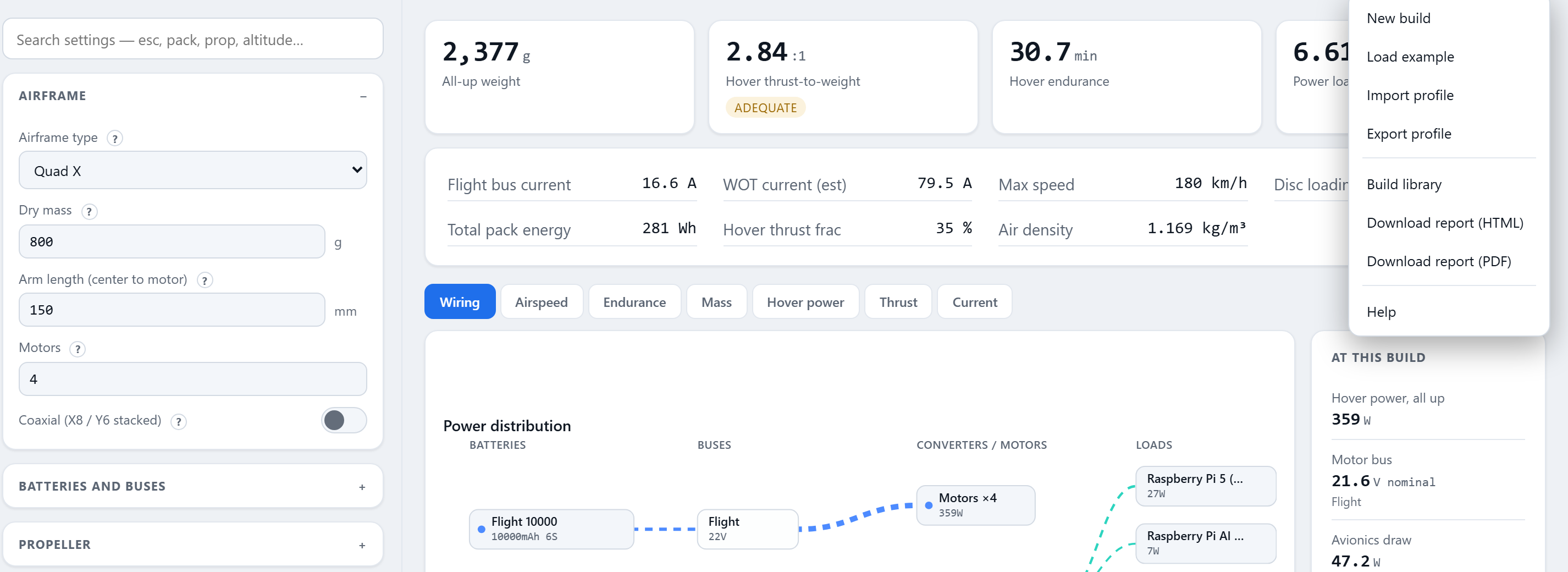
To make the working build permanent, save it: in the Builder, open the Menu and choose Build library, type a name in Name this build, and press Save current. An optional note field below records what changed in this version.
Duplicating a build#
Saving under a name that already exists overwrites that entry (and adds a version to its history). Saving under a new name creates a new entry. So to duplicate a build: load it, type a different name in Name this build, and press Save current. The original stays as it was, and the copy is now the working build. Each library row also has a Rename button for renaming in place without duplicating.
Throttle Simulator keyboard shortcuts#
With the throttle stick focused, the simulator responds to the keyboard:
| Key | Action |
|---|---|
| Arrow Up or Arrow Right | Raise throttle by 2% |
| Arrow Down or Arrow Left | Lower throttle by 2% |
| Home | Full throttle |
| End | Zero throttle |
| H | Jump to the hover stick position |
You can also drag the stick with the pointer.