
Regulation Tracker
The Regulation Tracker at https://app.rotorlab.app/regulations lists the drone rules operators fly under, in the United States, its states and the other countries RotorLab covers. Each rule is linked to its official text and carries its history from first proposal to today, the dates still ahead, and the places in RotorLab that rest on it. Reach for it when you want to know where a rule stands, what changed since you last looked, or what takes effect next. Open Regulation Tracker from the Records group of the side menu. Every signed-in member can read it.
Informational, not legal advice
A summary here never replaces the official text. Open the source linked on every entry, and ask counsel how a rule applies to your operations. The tracker does not say whether a rule applies to you, or whether any operation meets it.
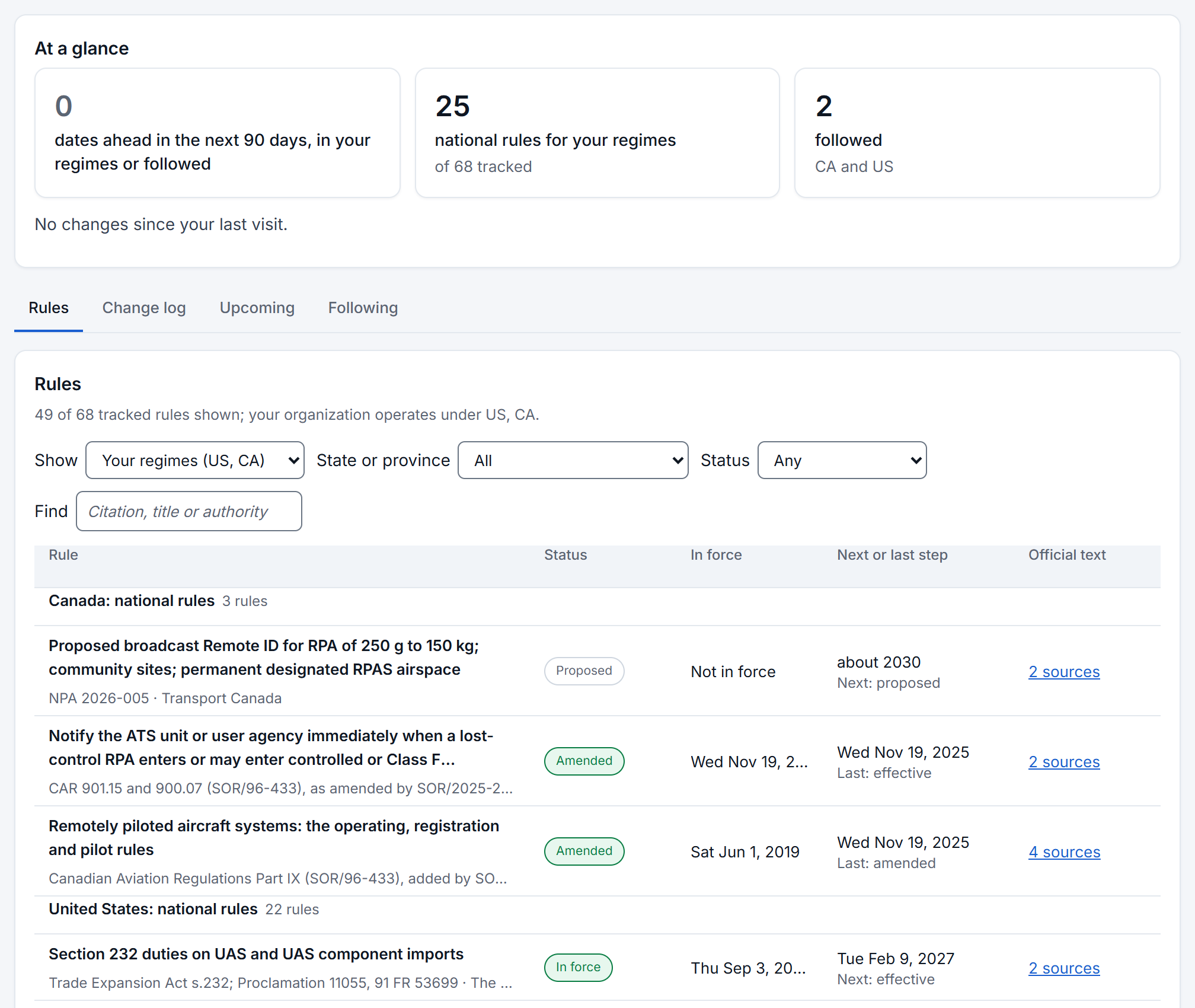
The tracker opens on its at a glance tiles, with the tab row and the Rules list beneath:
At a glance#
The page opens on up to four tiles, each with its number first and each opening the list it counts. The changes tile is drawn only when it counts something; a line under the tiles says so instead (for example, No changes since your last visit). The other three always show, a zero included.
- changes since your last visit: dated steps added or corrected since you last opened the tracker. Opens the change log. It appears only when there is at least one.
- dates ahead in the next 90 days, in your regimes or followed: steps still to come, such as an effective date or a comment deadline, for rules in your regimes or rules you follow, even when the number is 0. Opens Upcoming.
- national rules for your regimes: the national rules of the jurisdictions your organization operates in, with the count out of every rule tracked beneath it. Where your billing address names a state or province, the label adds it (rules for your regimes and that state) and the count includes its rules. Opens the list filtered to them.
- followed: how many rules, jurisdictions or states you follow, with their names beneath (with none, None and a line inviting you to follow a rule, a country or a state). Opens Following.
Under the figures, the five newest changes are listed, each marked new, then the next three dates ahead in the next 90 days, with how many days away they are. Dates read in words, such as Fri Jan 1, 2027. On your first visit the page says so: from your next visit, steps added or corrected after today are marked new.
Rules#
The Rules tab lists the tracked rules in groups, one per country's national rules (for example Canada: national rules) and one for each country's states and provinces (United States: states and provinces), your organization's regimes first. A line above the list says how many of the tracked rules are shown. A group's heading stays in view while its rules scroll by. Inside a group, a rule with a date ahead comes first, soonest first, then the rest, the most recently changed first. Narrow it with:
- Show: Your regimes (with their names), Everything tracked, or one jurisdiction.
- State or province: All, National rules only, one state or province, or, where your billing address names one, your own with the national rules.
- Status: proposed, comment period, final, in force, amended, withdrawn or enjoined.
- Find: a citation, a title or an authority.
Each row gives Rule, Status (with the reason beneath it where the status needs one), In force (the date, Date not recorded where the rule is in force or final and no date is held, or Not in force for a proposal, a withdrawn or an enjoined rule), Next or last step with its date and Next: or Last: and the kind of step (with the days away when it is within 90 days), or None recorded, and Official text: a single source reads 1 source and is a link, and several read as a count such as 3 sources that opens the rule at its list of sources. A link whose address is not yet confirmed says so.
A rule's page#
Choose a rule's title to open it. The page names the rule and where it applies, and gives:
- Citation, Authority, Status (with a note where the status needs one), In force and Updated here, the time the entry was last changed in RotorLab.
- Official text: the links to the primary sources.
- The timeline, headed with how many dated steps it holds, first to last. Each step gives its date, its kind (proposed, comment period, final, effective, amended, guidance, withdrawn or enjoined), what happened, and its source. A step still ahead is marked ahead with how many days away it is, and one added or corrected since your last visit is marked new.
- What it touches in RotorLab: the places in the product that rest on the rule, named by page and part, for example "Aircraft origin: the covered foreign UAS lists", "Occurrences: reportable categories" or "Airspace Viewer and Mission Planner: airspace checks". When nothing in RotorLab rests on it, the page says so.
- Sourcing, where an entry rests on anything other than the primary source, saying what it rests on.
Follow this rule adds it to what you follow; Stop following removes it. All rules returns to the list.
Change log#
The Change log tab lists the dated steps of the tracked rules from the last 90 days, newest first. Press Show older to add 50 older steps at a time; the line beside the button says how many are not shown. Narrow it by Jurisdiction, Rule status and Step (the kind of step), and tick Only what is new since my last visit to see what was added or corrected since you last opened the tracker. The line above the list counts the steps shown.
Upcoming#
The Upcoming tab lists the effective dates, comment deadlines and other steps still ahead, soonest first, after the three dates already shown under At a glance (a line above the list says how many that is), counted from today in your organization's time zone, which the tab names. A date written "about" is an estimate the source gives.
Following and the bell#
Follow a rule from its page, or follow a whole jurisdiction or a state or province on the Following tab: pick it under Jurisdiction or State or province and press Follow. A jurisdiction covers its national rules; follow a state or province for its own. The tab lists what you follow, each with Stop following.
When a step is added or corrected on anything you follow, the notifications bell says Rules you follow have changed, with how many changes and the names of the rules, and Open the change log takes you there. The notice leaves the bell when you open the tracker or dismiss it, and the bell stays quiet until the next change. Following is your own: it does not change what anyone else in your organization sees.
A rule that is missing#
If a rule or requirement that matters to your operations is not listed, tell RotorLab through Support: choose A rule or requirement we should track, name the rule and its authority, and link the official text if you can. The tracker's page carries the same line, Tell us through the support desk.
How entries are kept#
RotorLab keeps the entries current, adding rules and steps and correcting them as the official sources change. Every entry links to its primary source. A corrected date replaces the old one rather than standing beside it, and the correction is marked new for anyone who last visited before it.
Reading the page#
An effective date shows in the warning color only when it belongs to a rule in one of the regimes your organization operates under; the same date in another regime reads plainly. The note that this is a tracking aid and not legal advice reads plainly too.